Parts Pricing
If any lines have been added to the vehicle at inspection that requires parts before the vehicle is priced the system will move the vehicle into Parts Pricing so that these can be added.
How to View Vehicles that Need Pricing
Select 'Vehicles for Pricing' from the start page
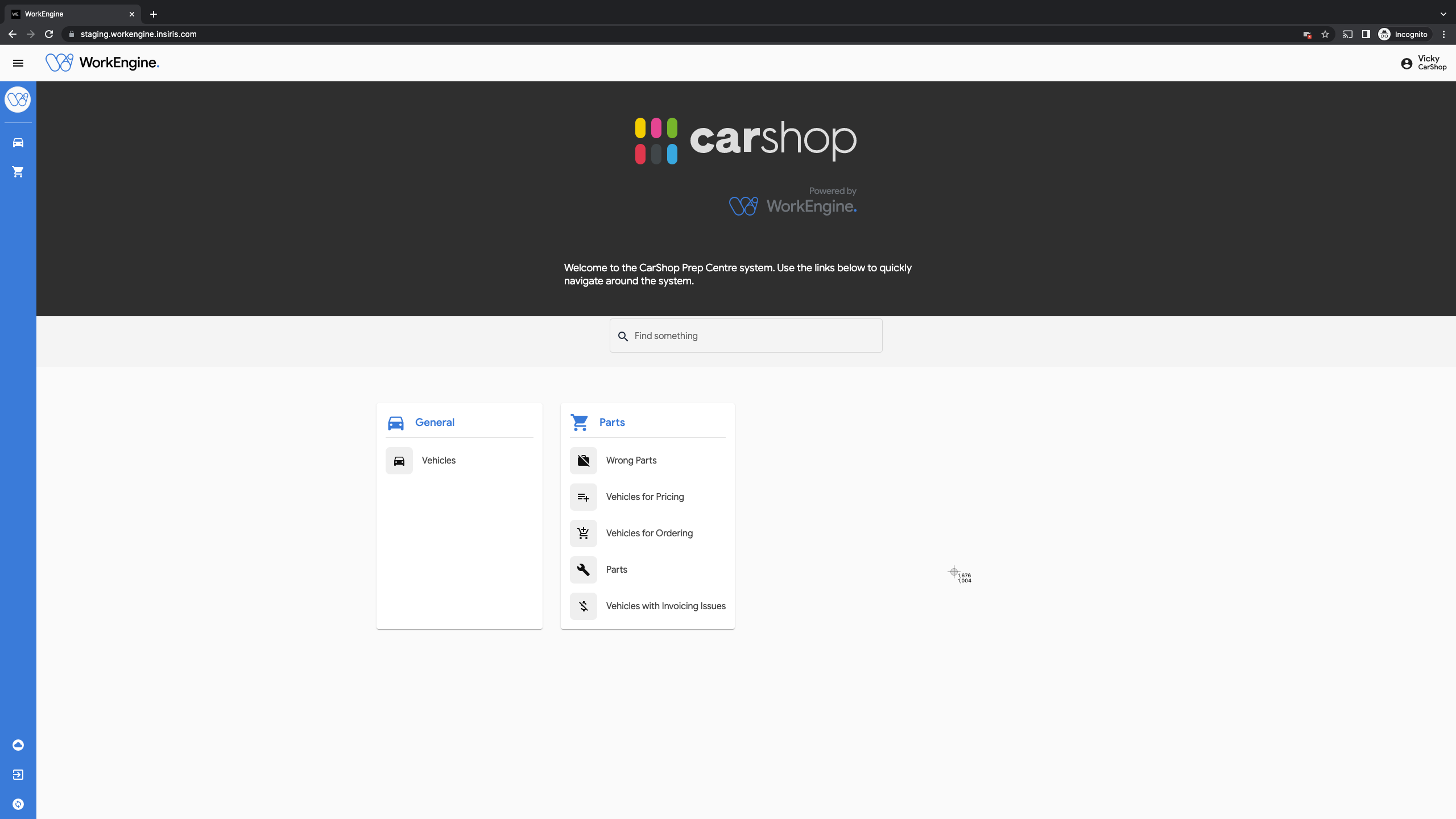
Vehicles for Pricing
When a vehicle is ready to have the parts priced it will be shown in this view.

| VRM | To open the form to add in the pricing details |
| Make | Make of the vehicle |
| Model | Model of the vehicle |
| Status | This shows the current status of vehicle that requires pricing |
| Locked By | If someone else is using the vehicle you can't update the vehicle at the same time you can lock it |
| Sold | If the vehicle has been sold |
| Reserved | If the vehicle has been reserved |
- Select the VRM to open the form, this is highlighted in blue.
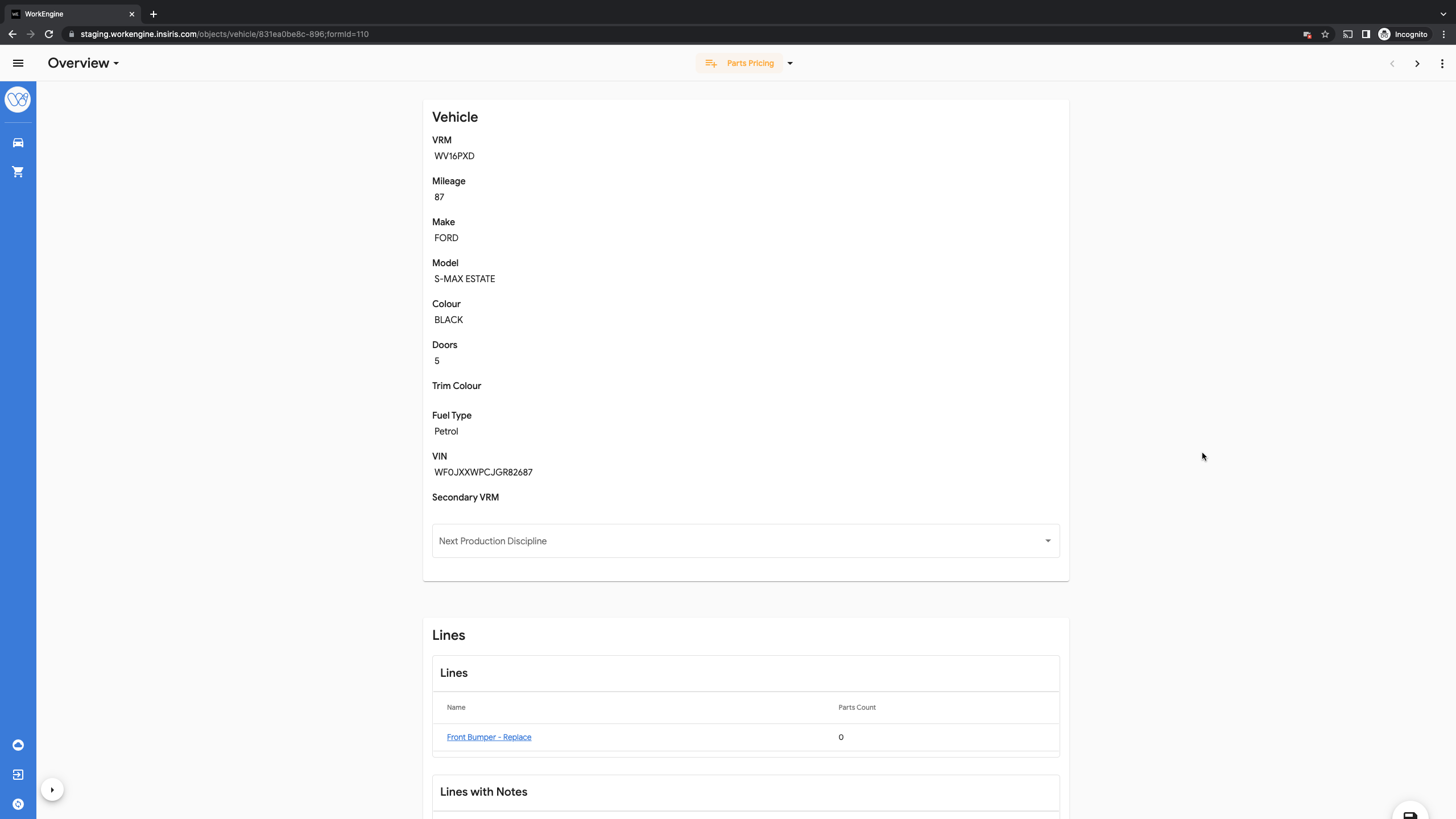
Within the Line section:
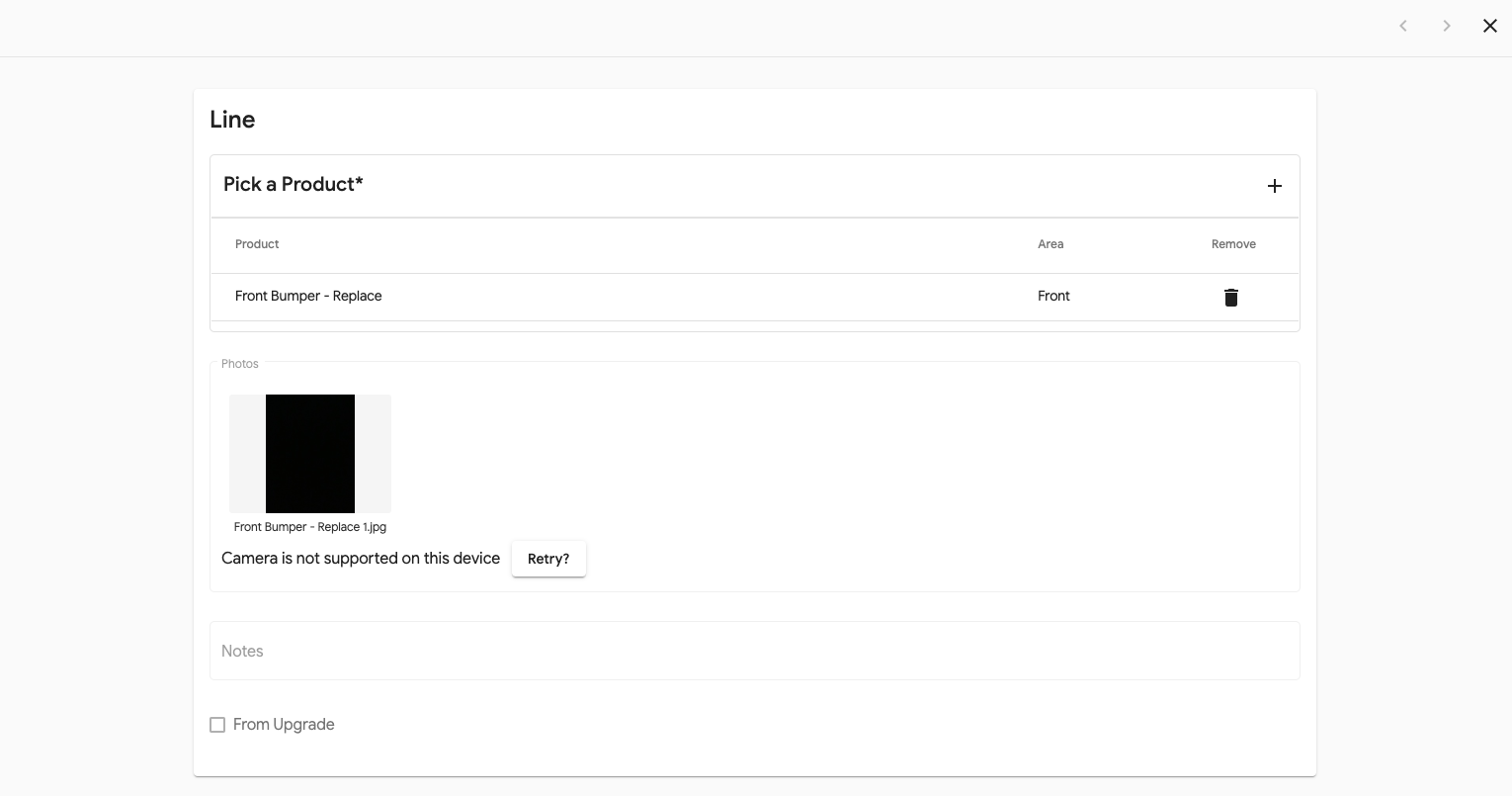
- Select the Name to open the Line form, highlighted in blue
- This will show you all the information relating to the line so that you can see what needs to be added.
- In the Parts section, select + on the right
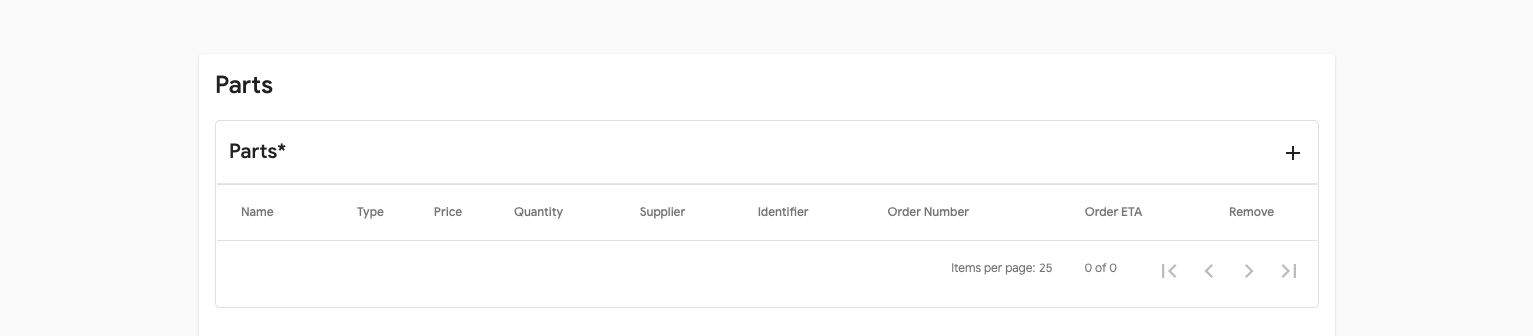
- You can now add in all the information relevant to the part and the price.
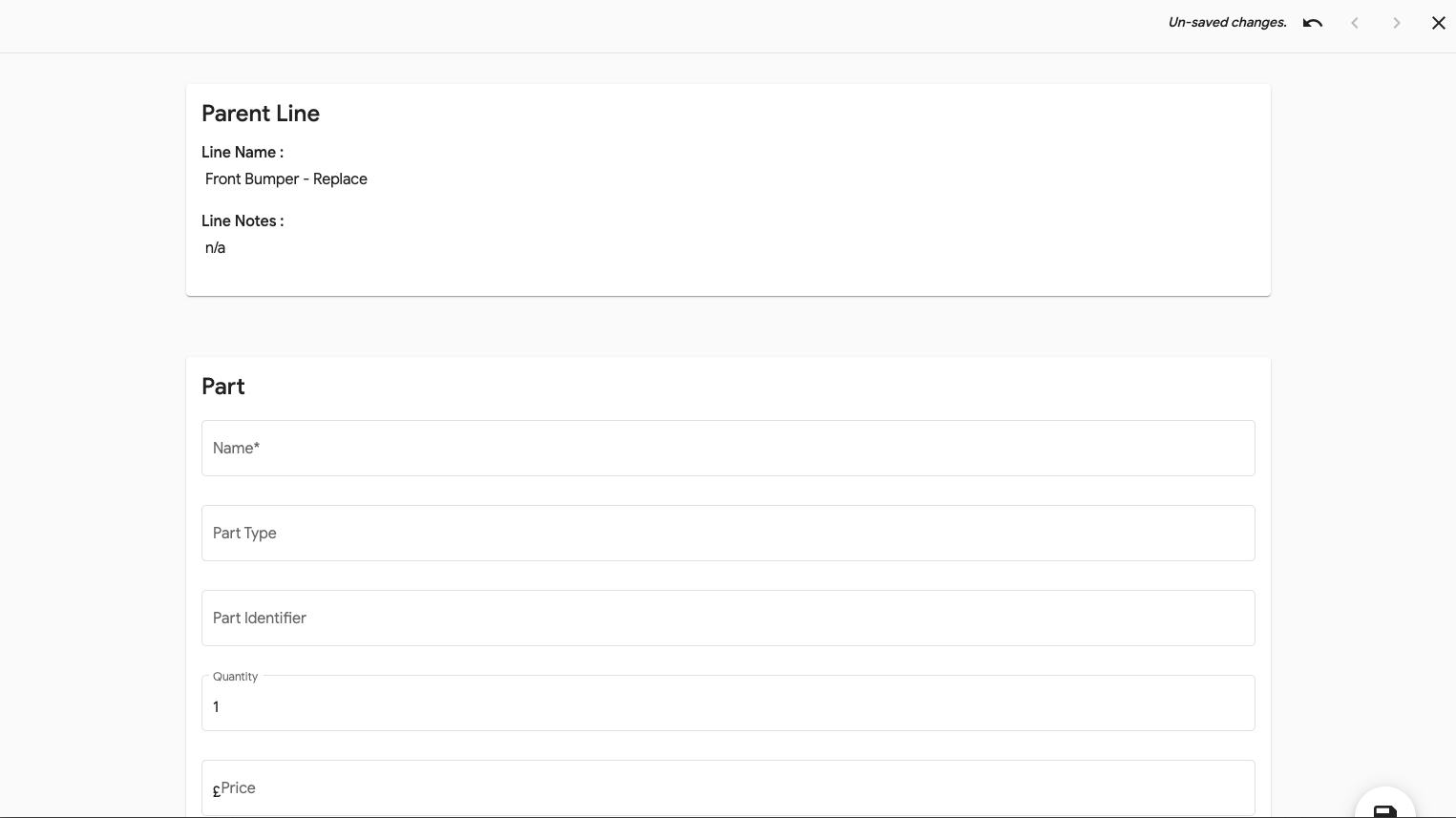
- Select the floppy disc icon in the bottom right to save
- This will add the new part and if there are other parts associated with the line then repeat the process
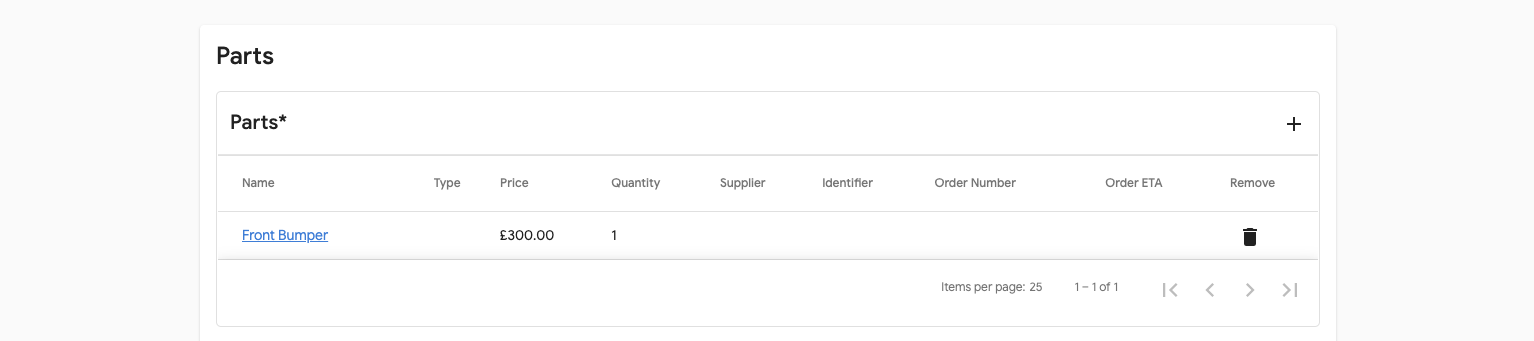
- To close the popup select X in the top right.
- Repeat for all other lines.
To move the vehicle from 'Parts Pricing' select the down arrow at the top of the page and move it to 'Pricing'
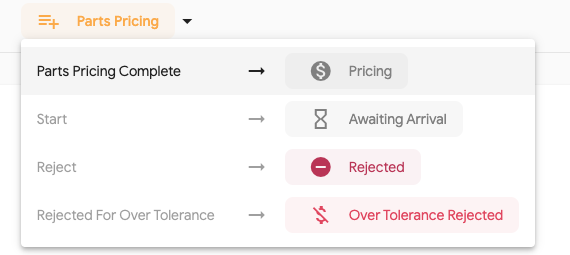
This will now remove it from the list and calculate the vehicles job card