Downgrades & Remove Lines
When the vehicle is in Production and the operative finds that the repair method can be changed to something that is cheaper, the line can be removed and a different repair method added. Alternatively, you can also cancel lines that are found not to be an issue.
How to Downgrade Line
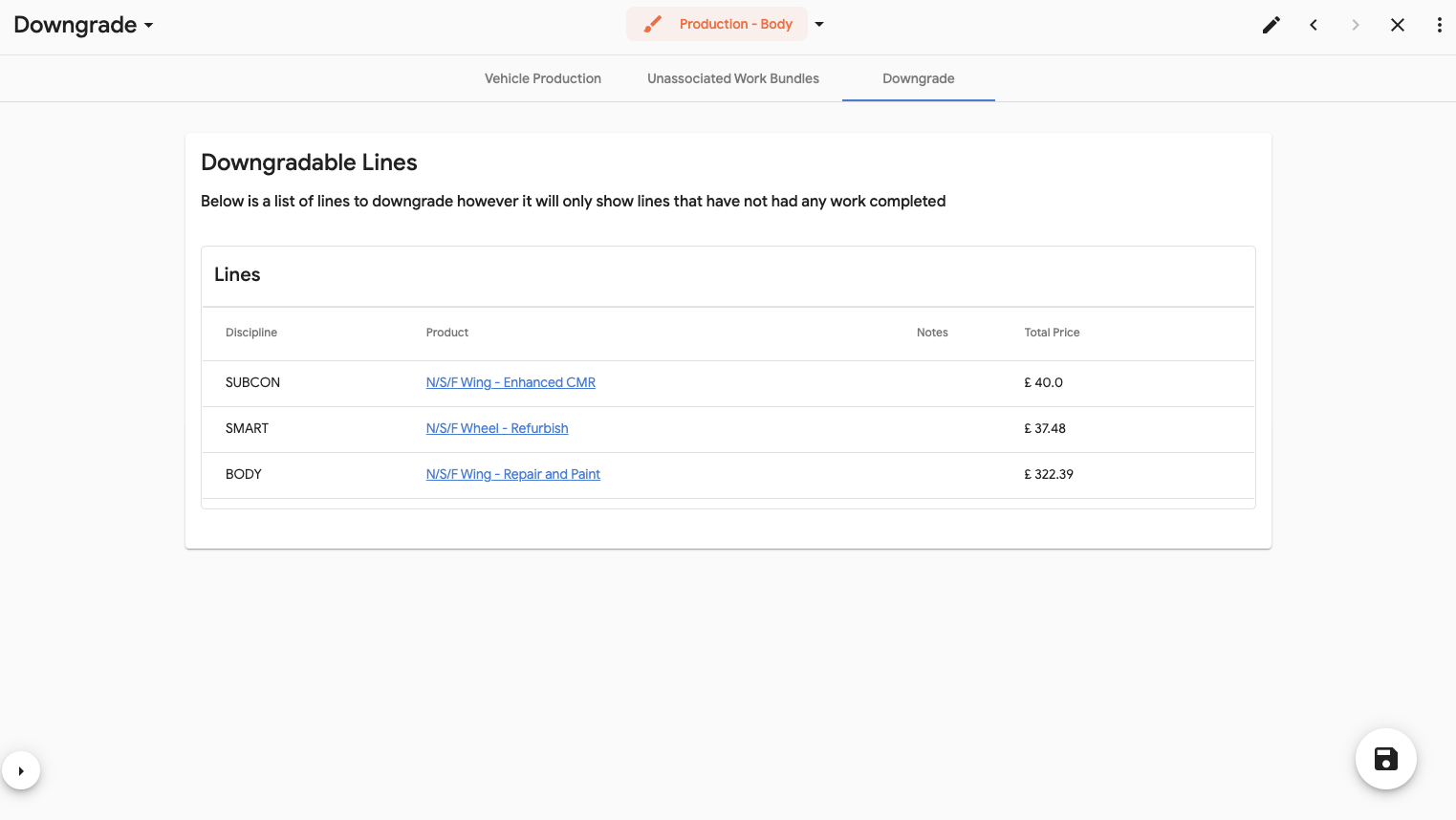
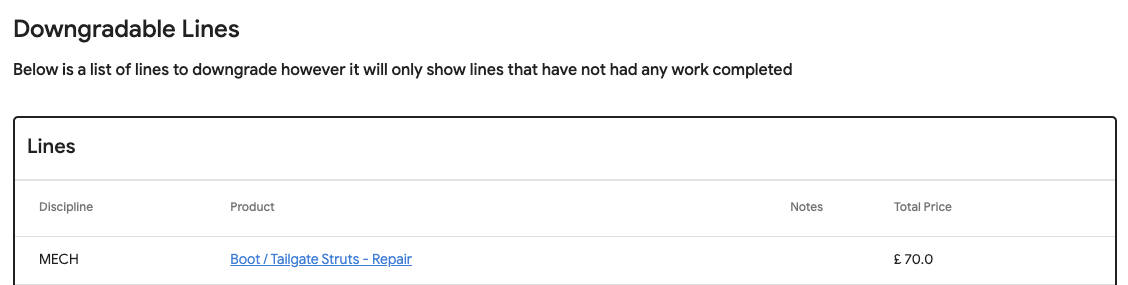
When a vehicle is in production, you will see a Downgrade tab
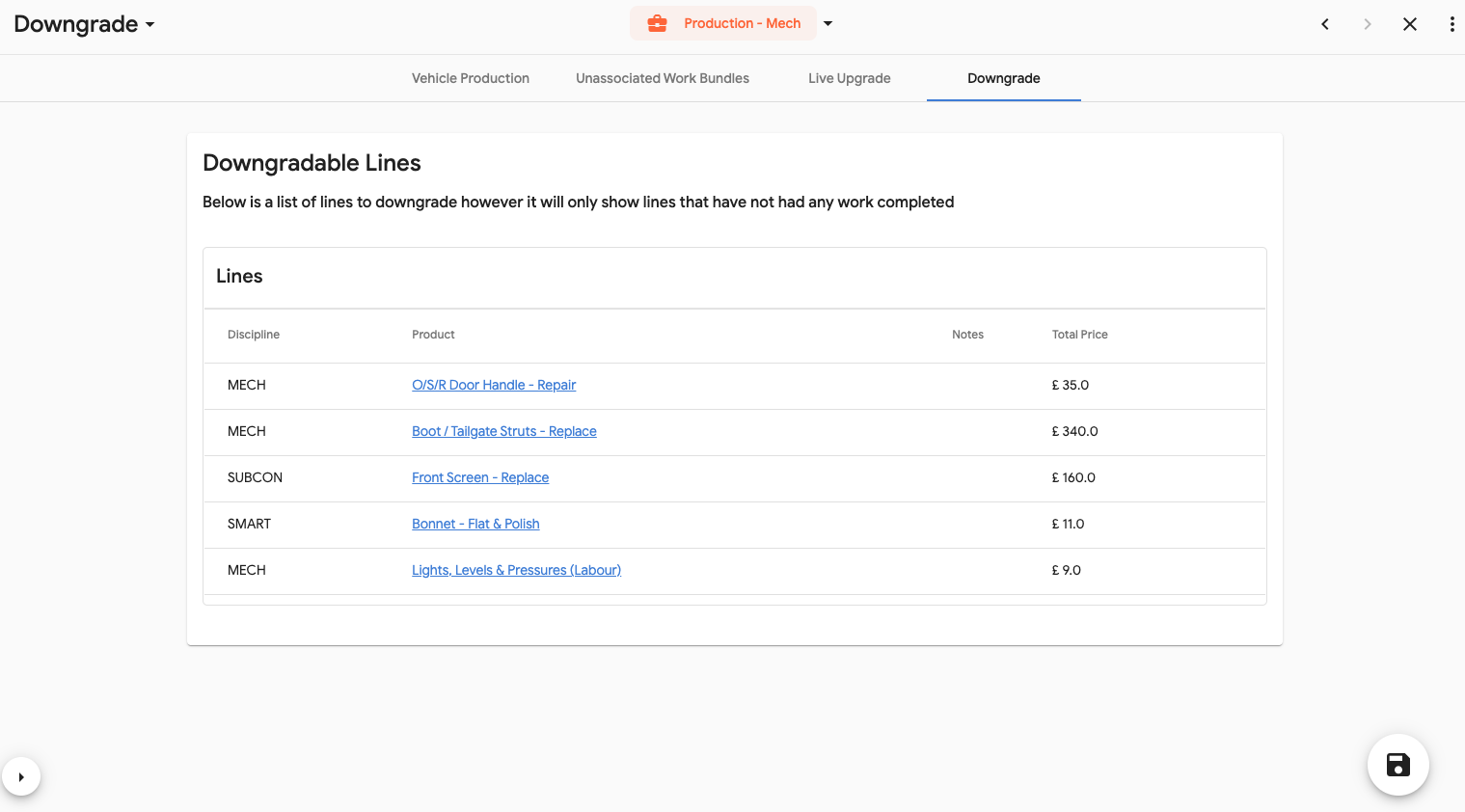
- Select this and you will now see all the lines that do not have any work completed on them.
- Select the line you want to downgrade by clicking on the Product, highlighted in blue
- A new popup will appear
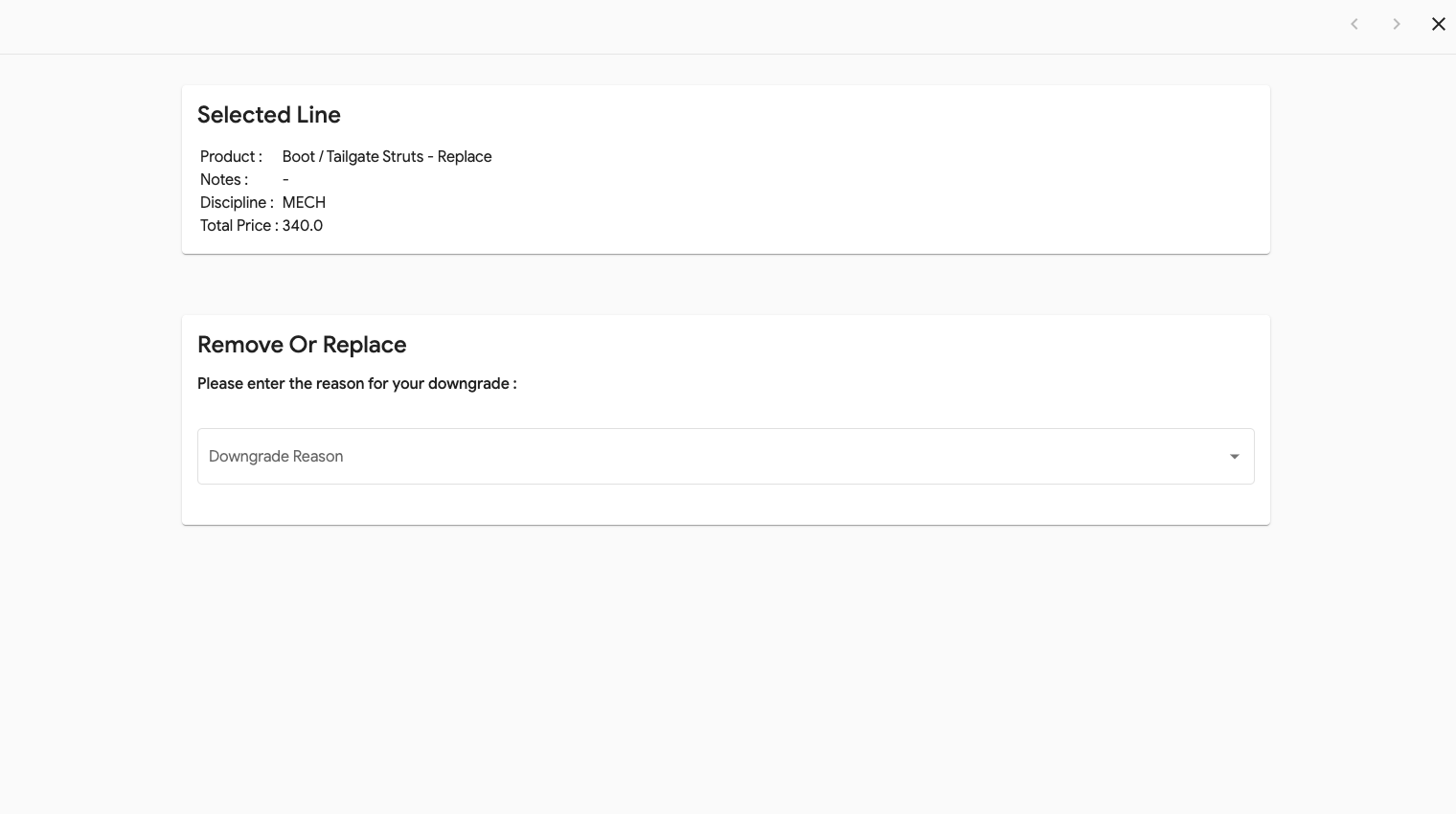
- This will show you the information relating to that line and a dropdown for the Downgrade Reason
- Select the Downgrade Reason dropdown and a remove button or replace button will be shown.
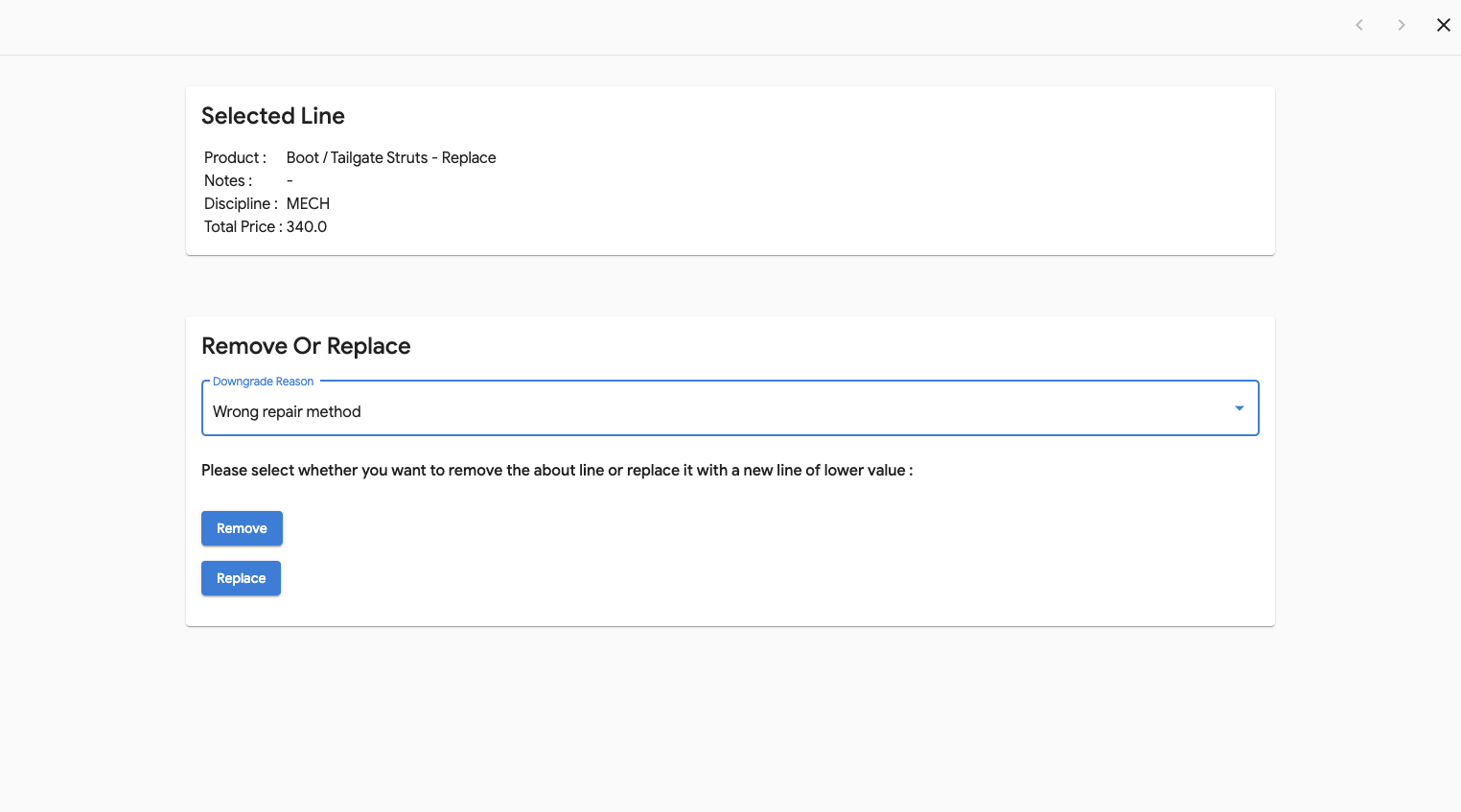
- Select Replace and a new Line field will be shown
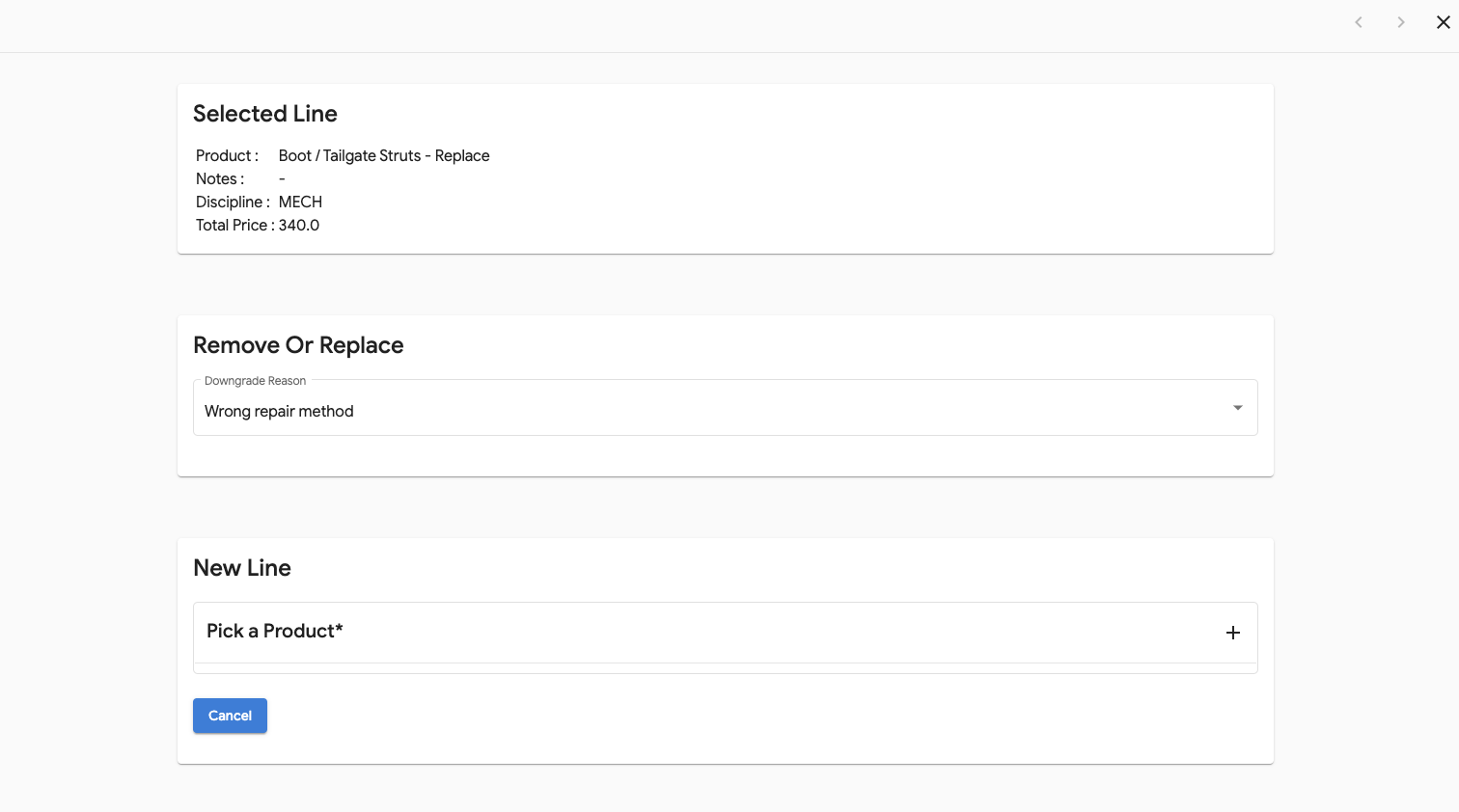
- Select the + on the right of the 'Pick a Product'
- Search for the replacement line you want and select the line
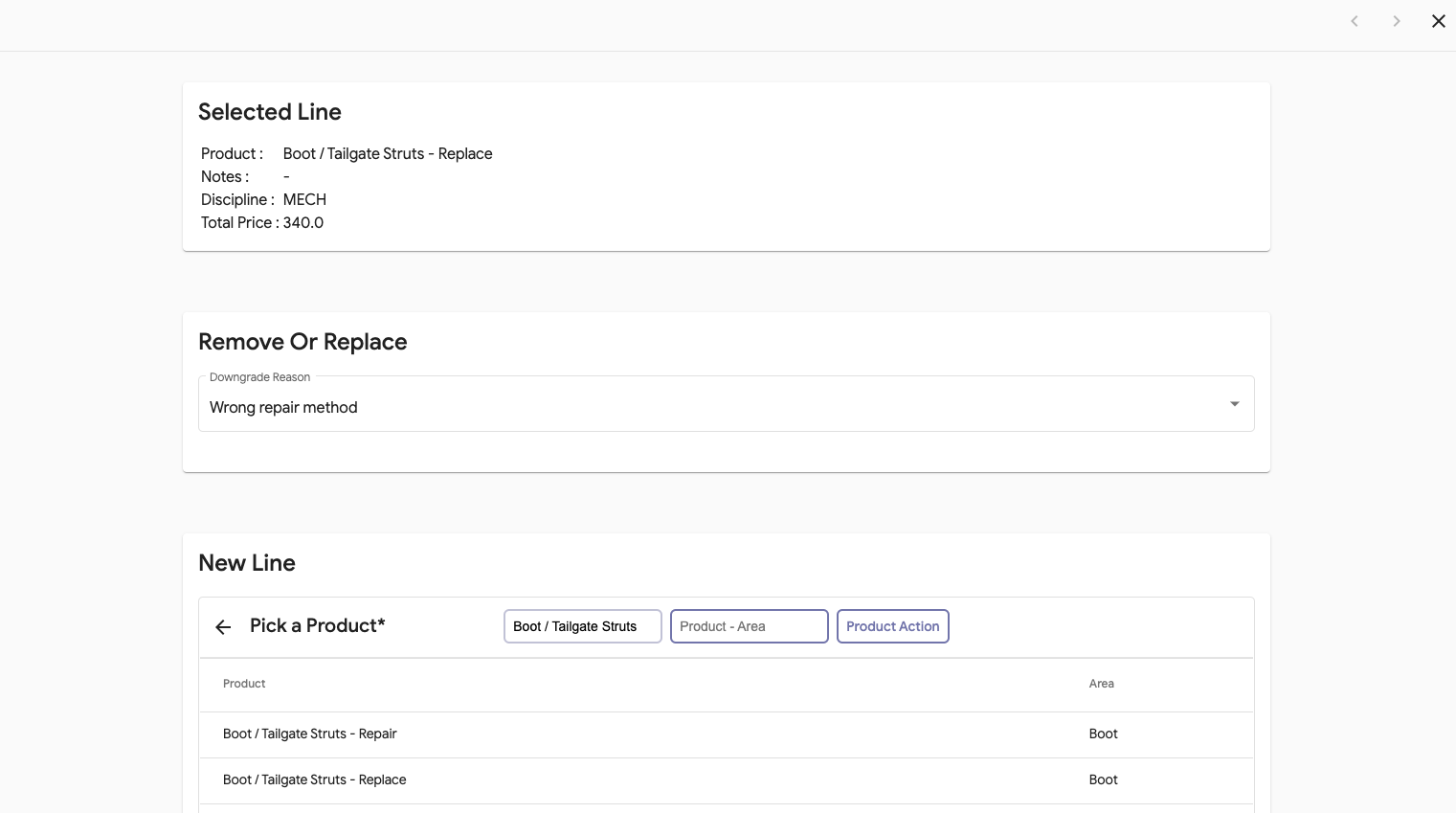
- This will be added (if you have selected this incorrectly click the Bin at the side to remove)
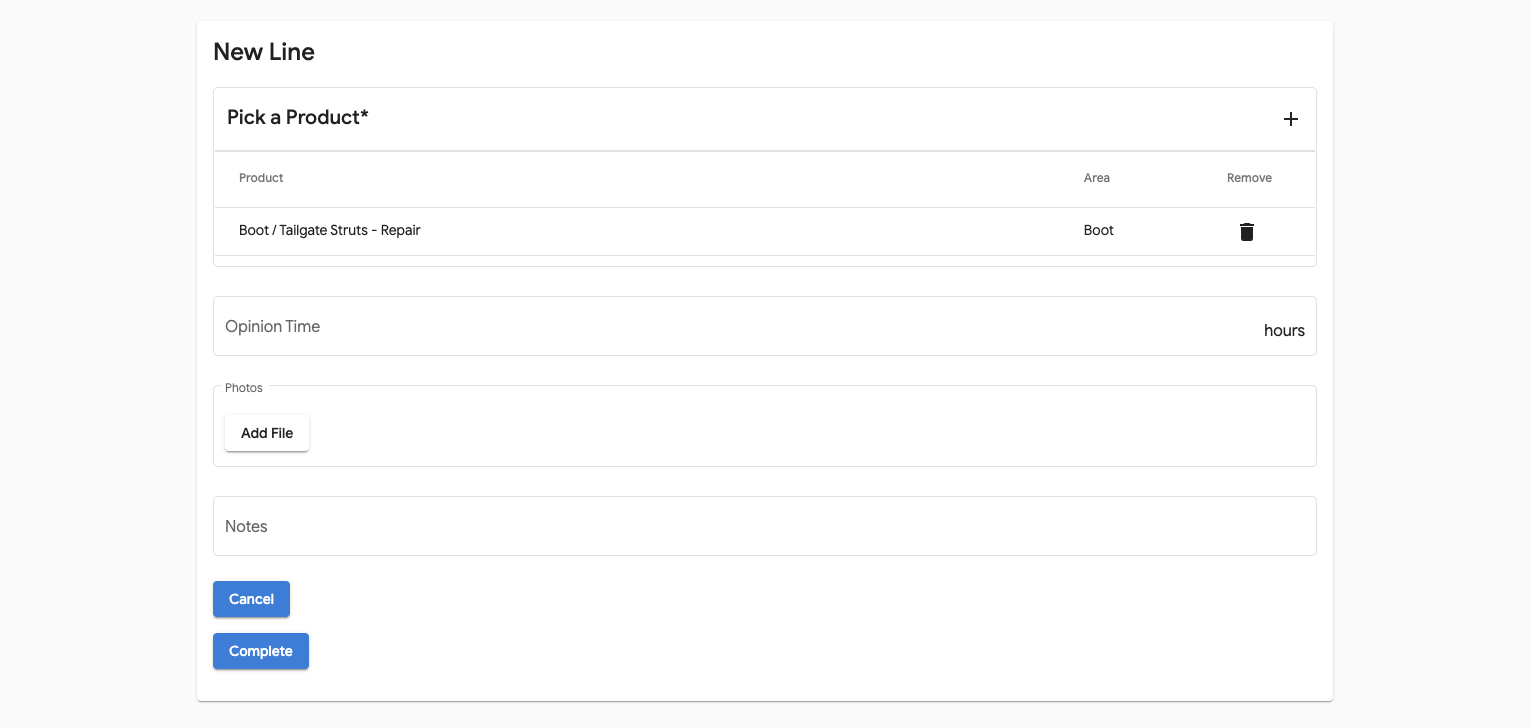
- Add in all the relevant information
- Select Complete
- A notification will be shown asking if you are sure you want to replace this line
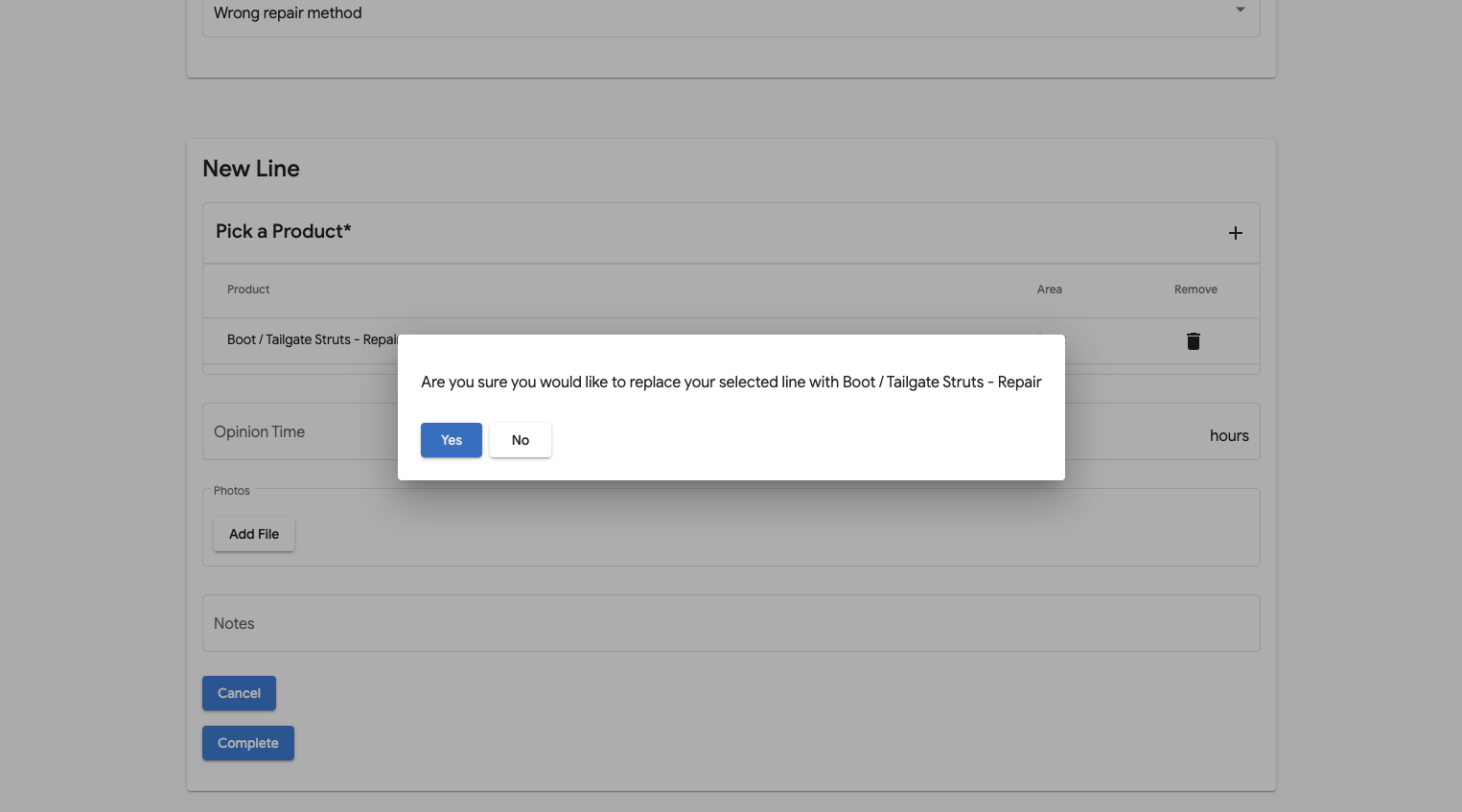
- Select 'Yes' to move on
The system will then calculate the price. If it's a lower price than the original repair method it will remove the original jobs and add the new one. If it going to cost more than the original repair method then a popup will appear stating that you need to go through the upgrade process.
Once complete the old line will have been removed and the new line added with the new cost.
How to Remove a Line
- Select the Downgrade tab
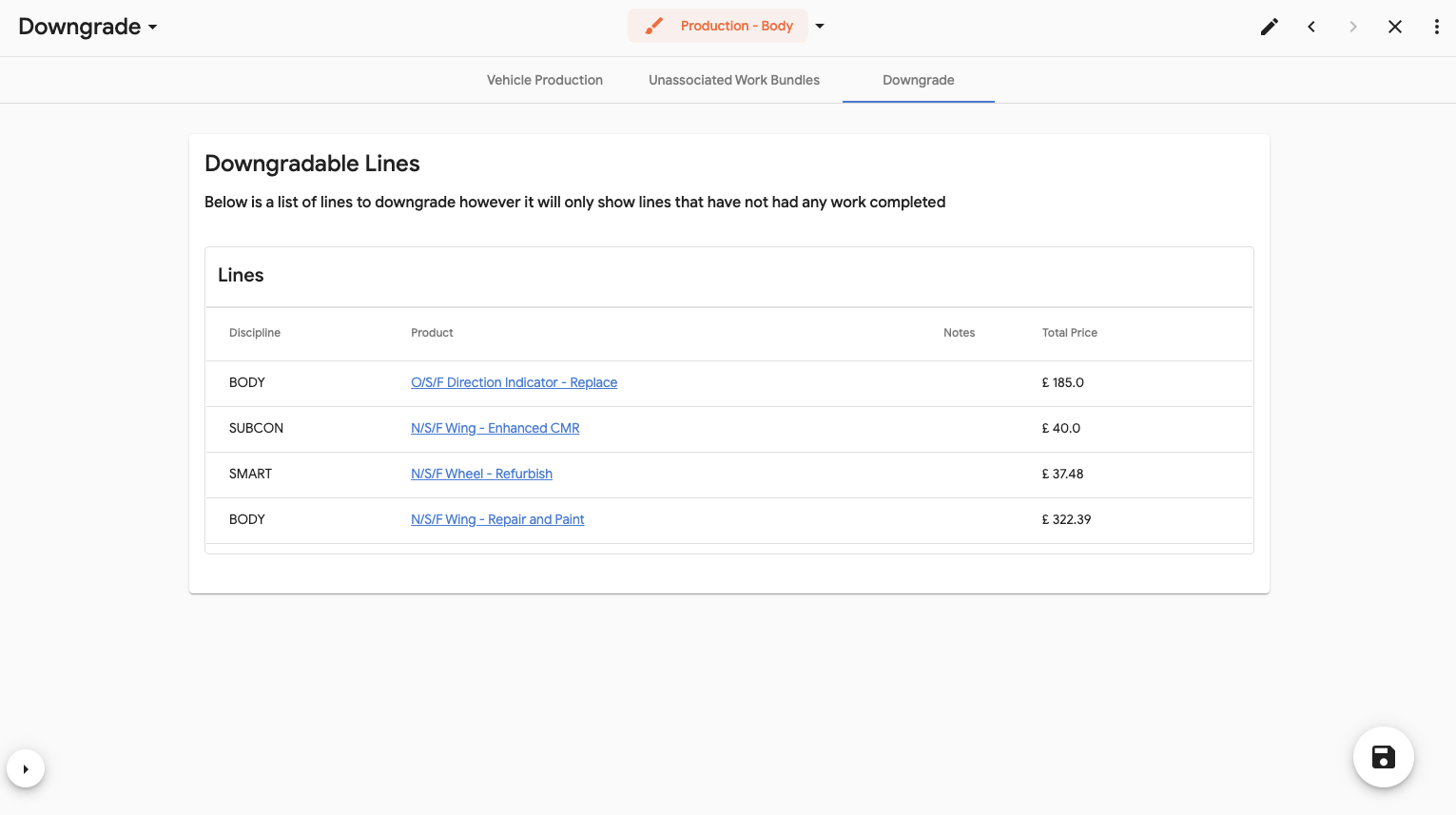 You will now see all the lines that don't have any work completed on them.
 - Select the line you want to downgrade by clicking on the Product, highlighted in blue
- This will show you the information relating to that line and a dropdown for the Downgrade Reason
- Select the Downgrade Reason dropdown and a remove button or replace button will be shown.
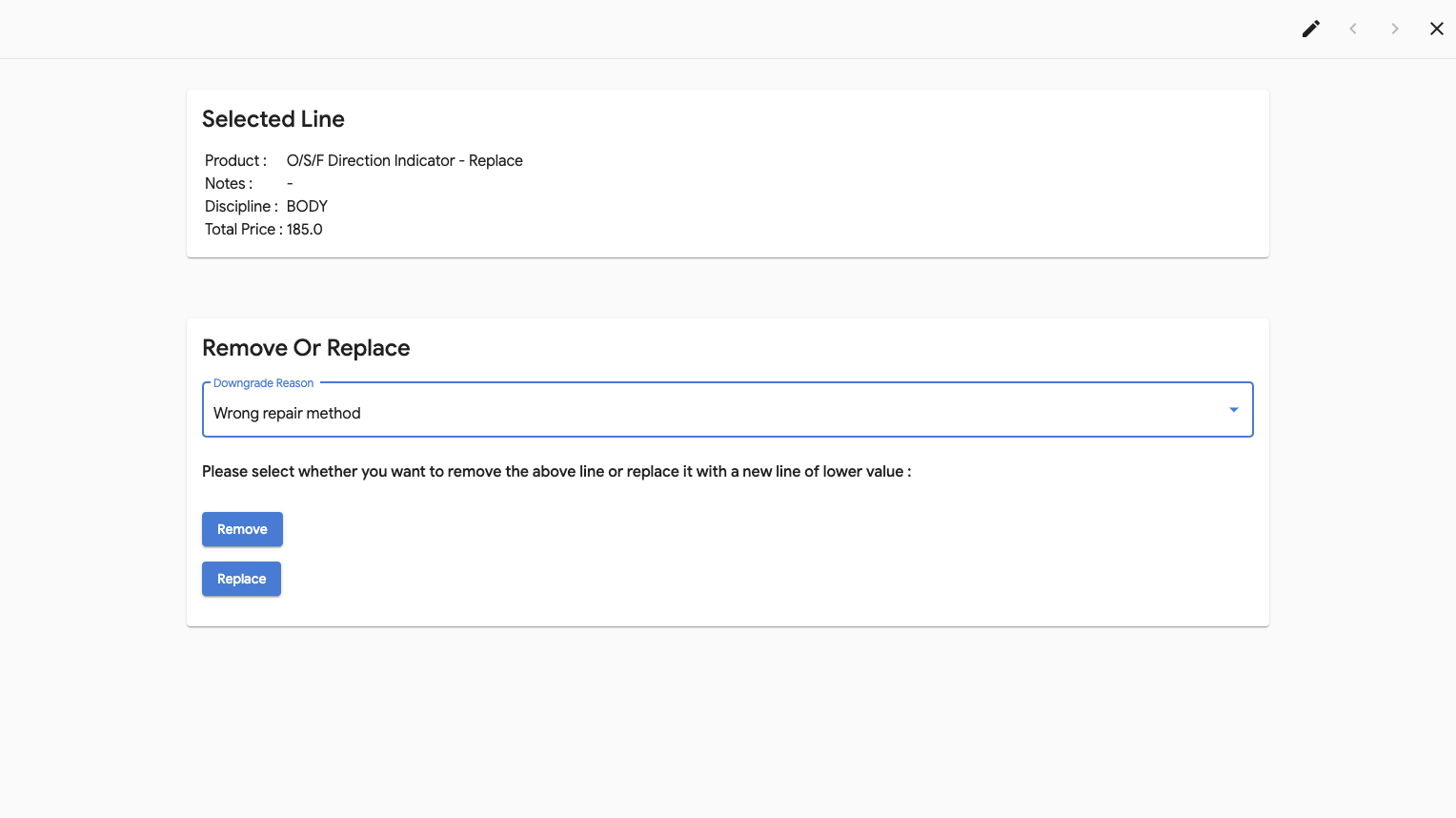
- Select Remove
- A notification will show asking if are you sure you want to remove the line
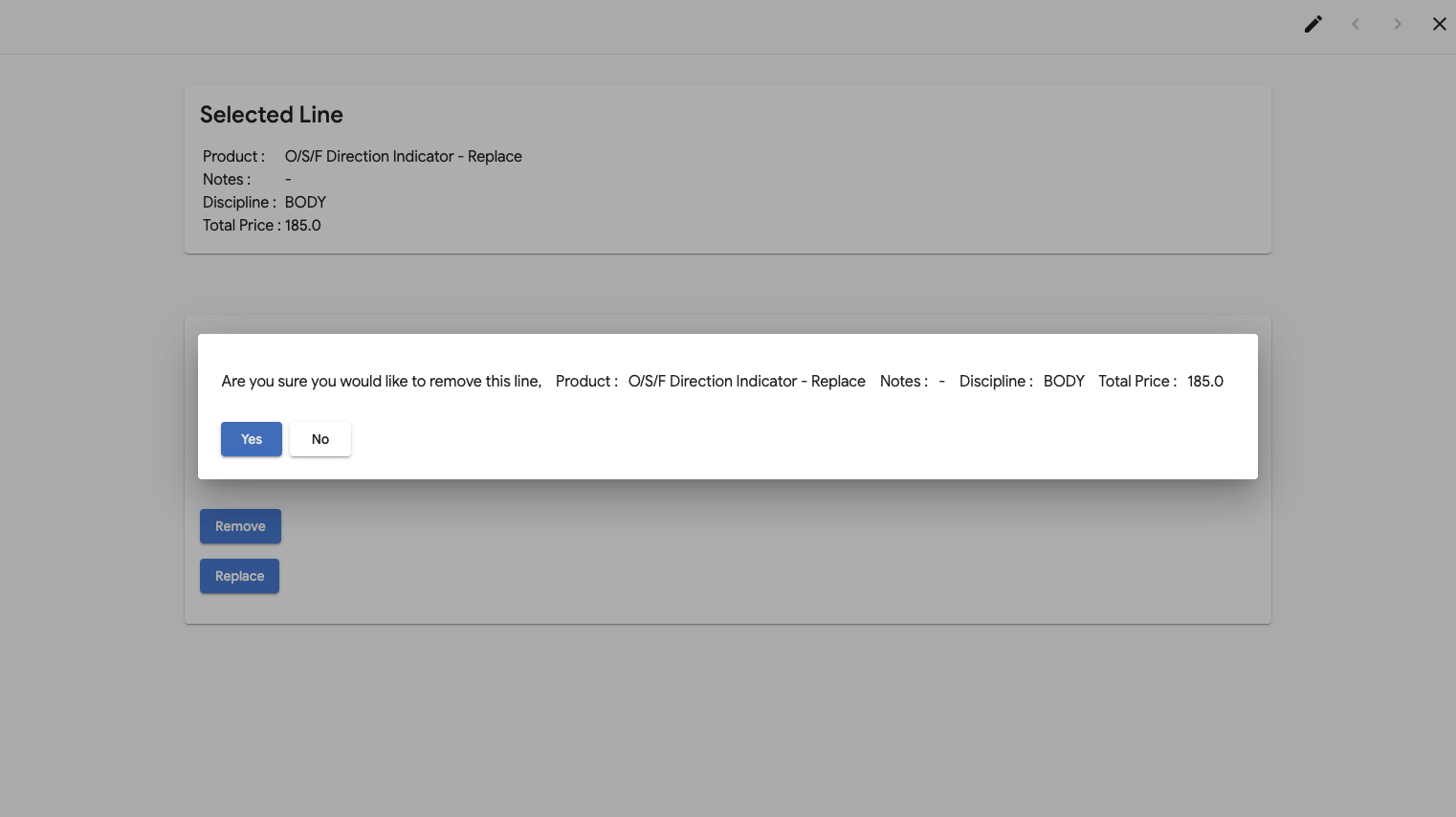
- Select 'Yes' to remove the line and all the jobs and the job card updated.
 You will now see all the lines that don't have any work completed on them.