Starting Work
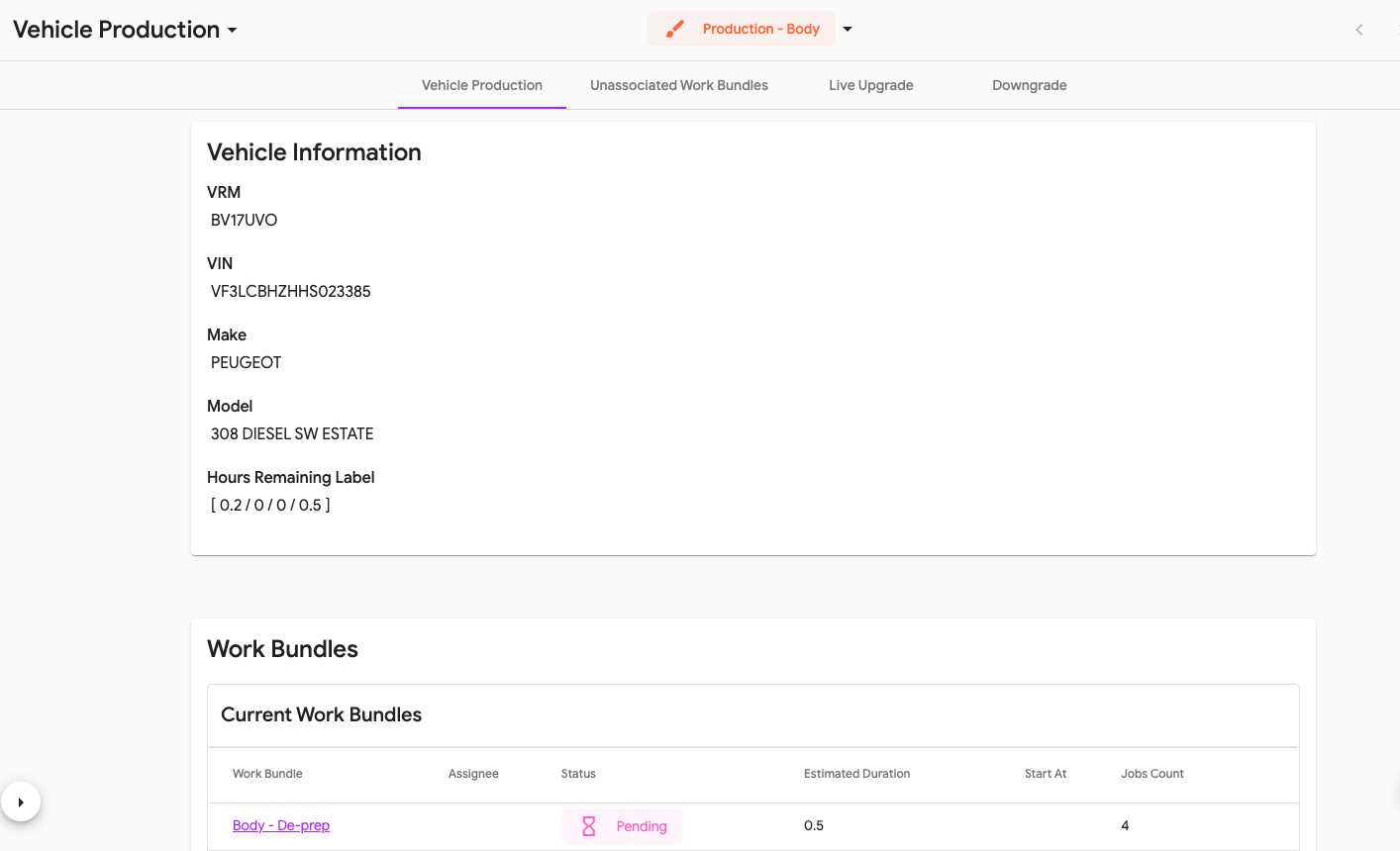
Starting Work allows you to allocate the work to the operatives and download job cards.
How to Start Work
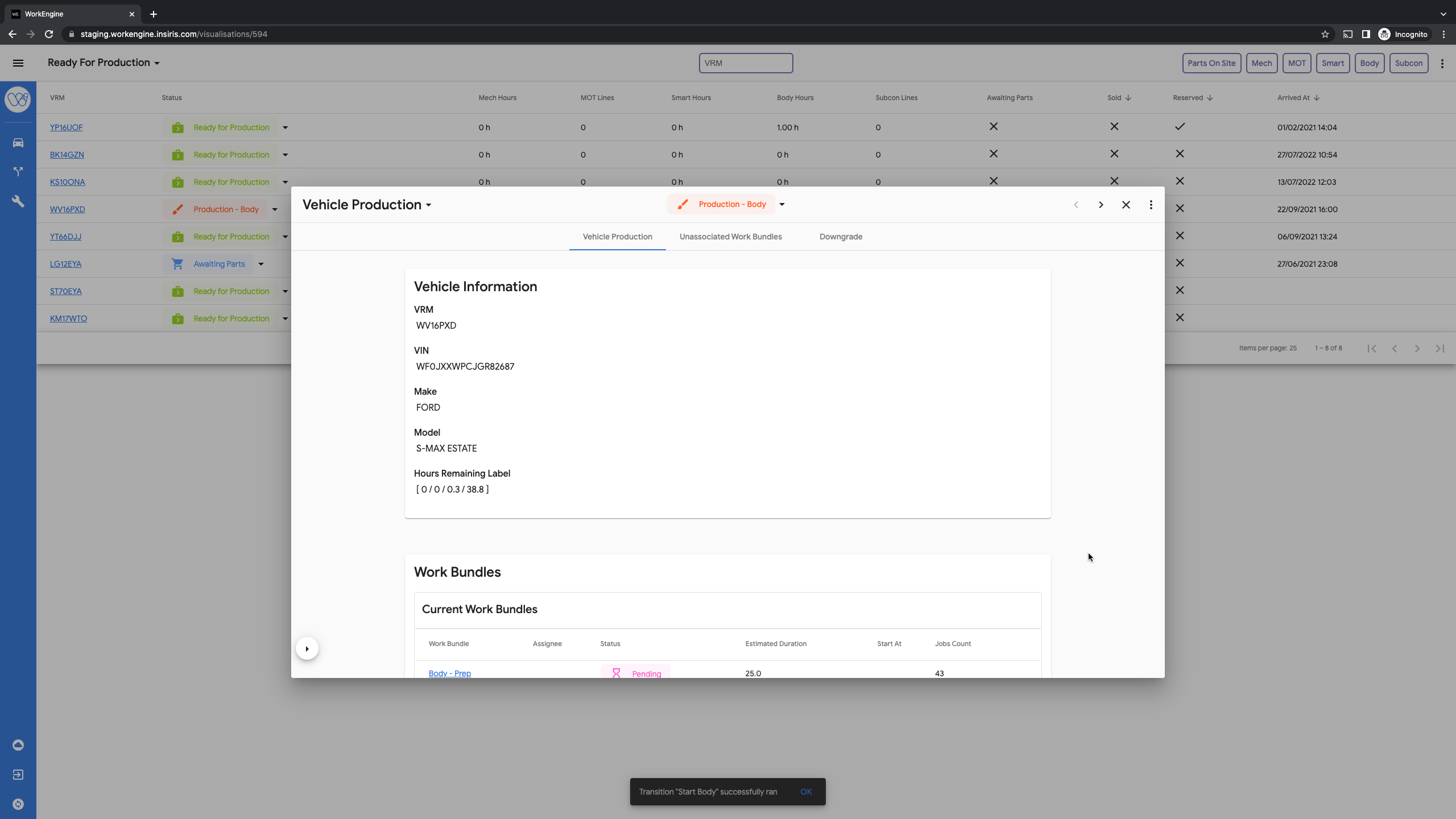
When you select the discipline that the vehicle will be worked on a popup will appear and from here you can open the work bundle and allocate the work. Please note, that as soon as you allocate the work the status will move to 'In Progress'
Assigning Work
To assign the jobs, select the work bundle
 This will open the work bundle information and all the jobs associated with this set of work.
Click into the Assignee box and from the dropdown list select who will be doing the work shown below in the Job Preview.
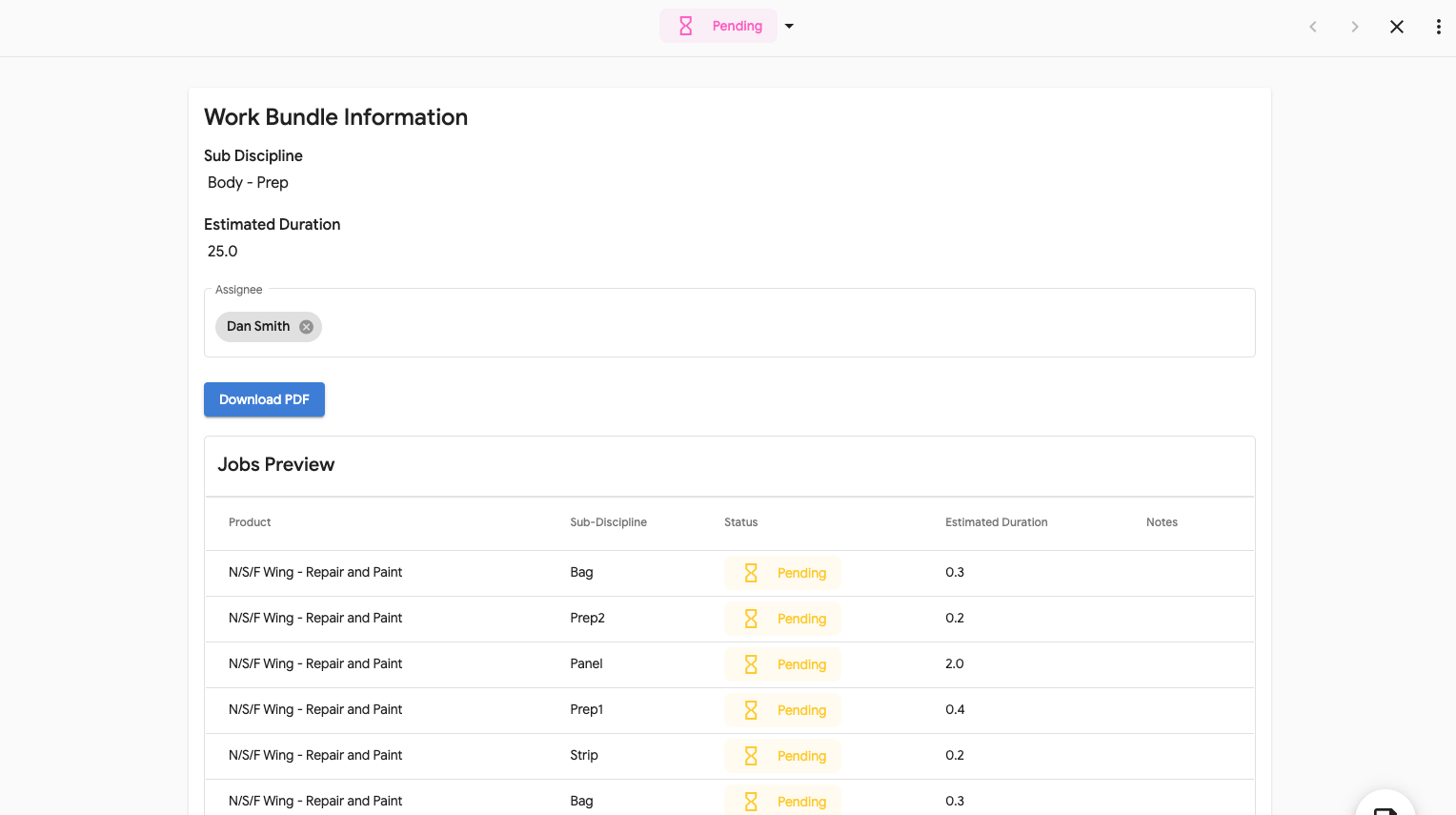
You must select Save to continue
Once you have saved the work bundle will be moved to 'In Progress'.
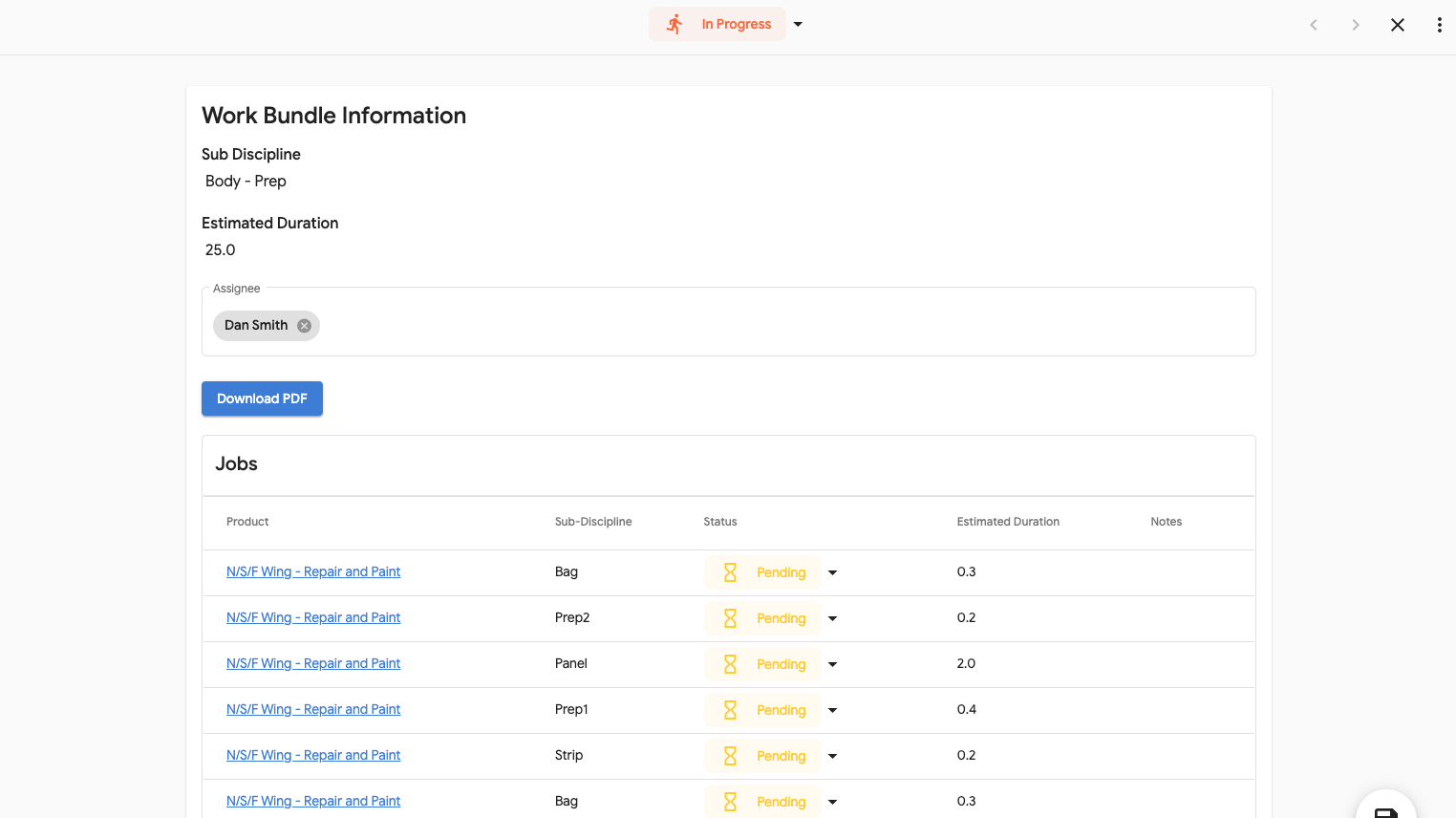
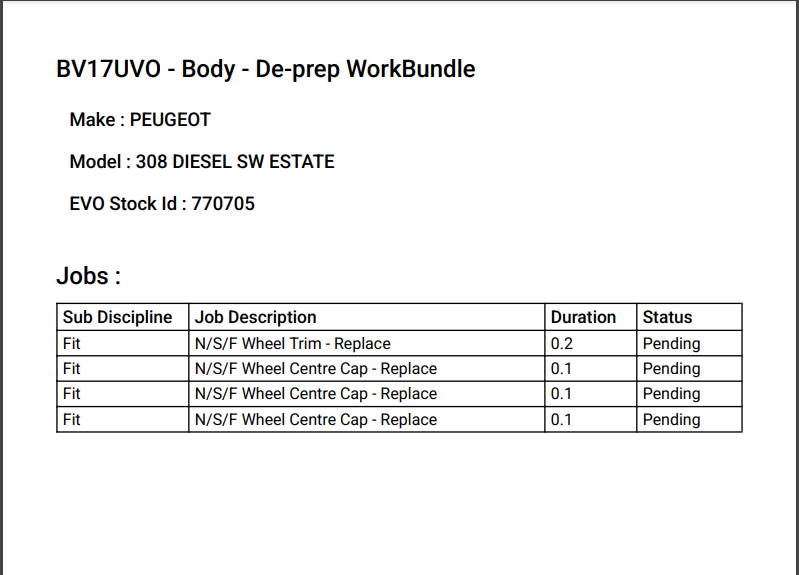
Using the Download PDF button to download the job card so that it can be printed and handed to the operative assigned
Viewing Vehicles in Production
Vehicles in Production table shows you all vehicles that are in production and what area they are being worked on:


This shows you:
| VRM | Select this to view more information |
| Date Arrived | Shows when the vehicle arrived on site |
| Current Status | What production status the vehicle is in |
| Assigned Operatives | Who is currently working on the vehicle. This will only show names if the vehicle is 'In Progress' |
| Chassis | The last 4 digits of the chassis number |
| Description | Short description of the vehicle |
| Subcon | How many Subcon jobs are outstanding |
| Parts | If the parts are 'In' or 'Parts on Order' |
| Paint | How many hours / job lines are outstanding |
| Smart | How many hours / job lines are outstanding |
| Mech | How many hours / job lines are outstanding |
| MOT | If an MOT is required it will show a tick or if not it will show as an X |
| Sold/Res | If sold this will be in red, if reserved it will be in orange |
| Sort | The order of the view is Sold then Reserved then longest on site.
|
You can filter the view:
| VRM | Search for the VRM | |
| Assignee | Search for the operative working on the vehicle | |
| Mech, MOT, Smart, Body & Subcon | Deselecting the buttons on the right will remove that section, for example if you remove Body it will remove 'Production-Body' from the view. | |
More Vehicle Information
Select the VRM to open the vehicle information