Locking a Vehicle
When you need to update a vehicle and don't want anyone else to be able to amend it at the same time, you can lock the vehicle.
How to Lock a Vehicle
When in the form that you are working on
- Select the 3 dots in the top right of the screen
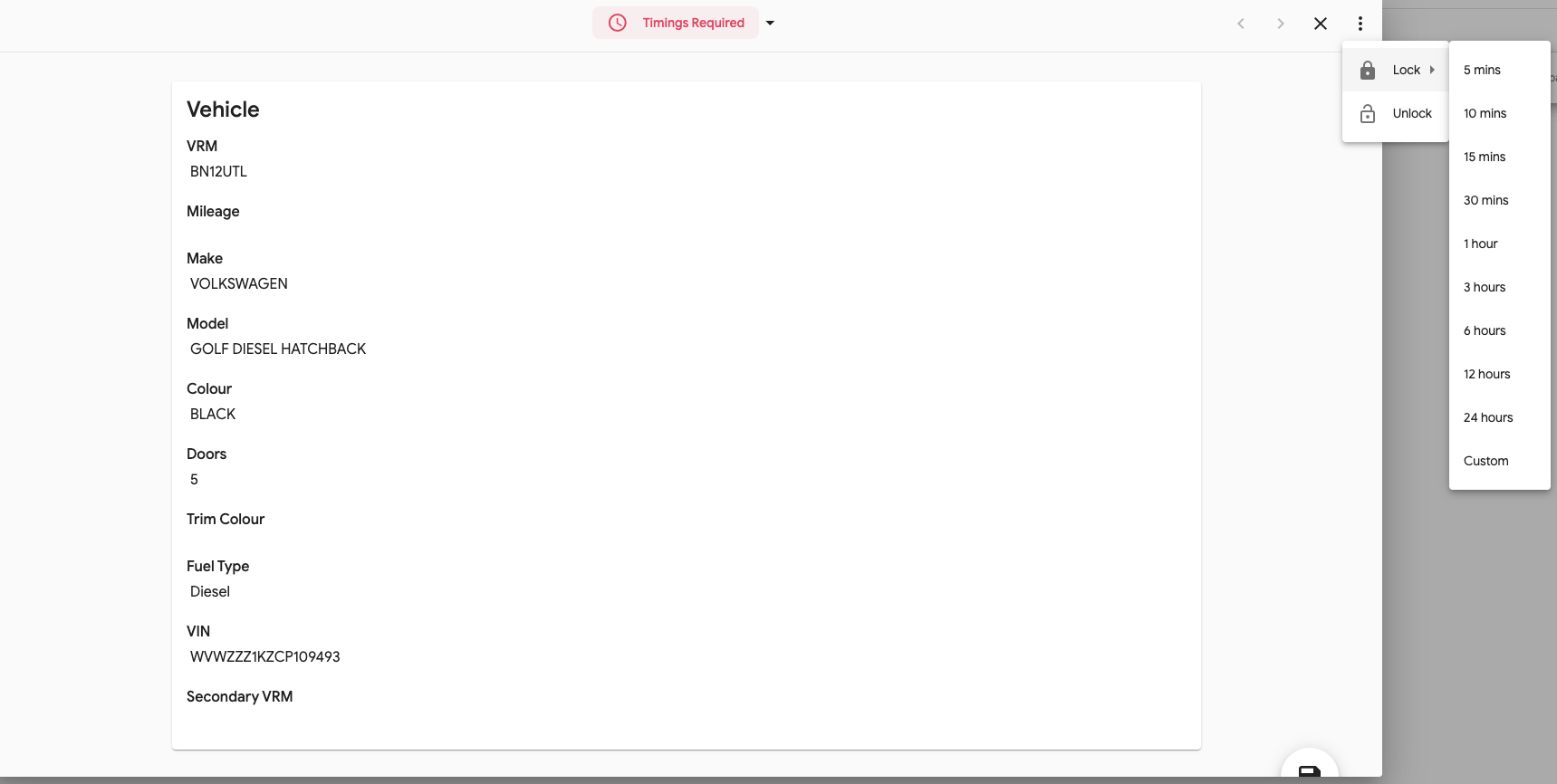
- Select Lock from the menu
- Select the time you need to lock this for. Please note that the form will automatically unlock after this duration.
- The form is now locked. A lock symbol will be shown on the left of the screen and your name will be shown in the 'Locked By' column on the main list view.


How to Unlock a Vehicle
If you have finished amending the form and need to unlock it.
- Select the 3 dots in the top right of the screen
- Select Unlock from the menu
The vehicle can now be updated by other users.